CoD Black Ops 6: How to Turn Off Kill Effects & Killcams
- By Liam
- Jan 29,2025
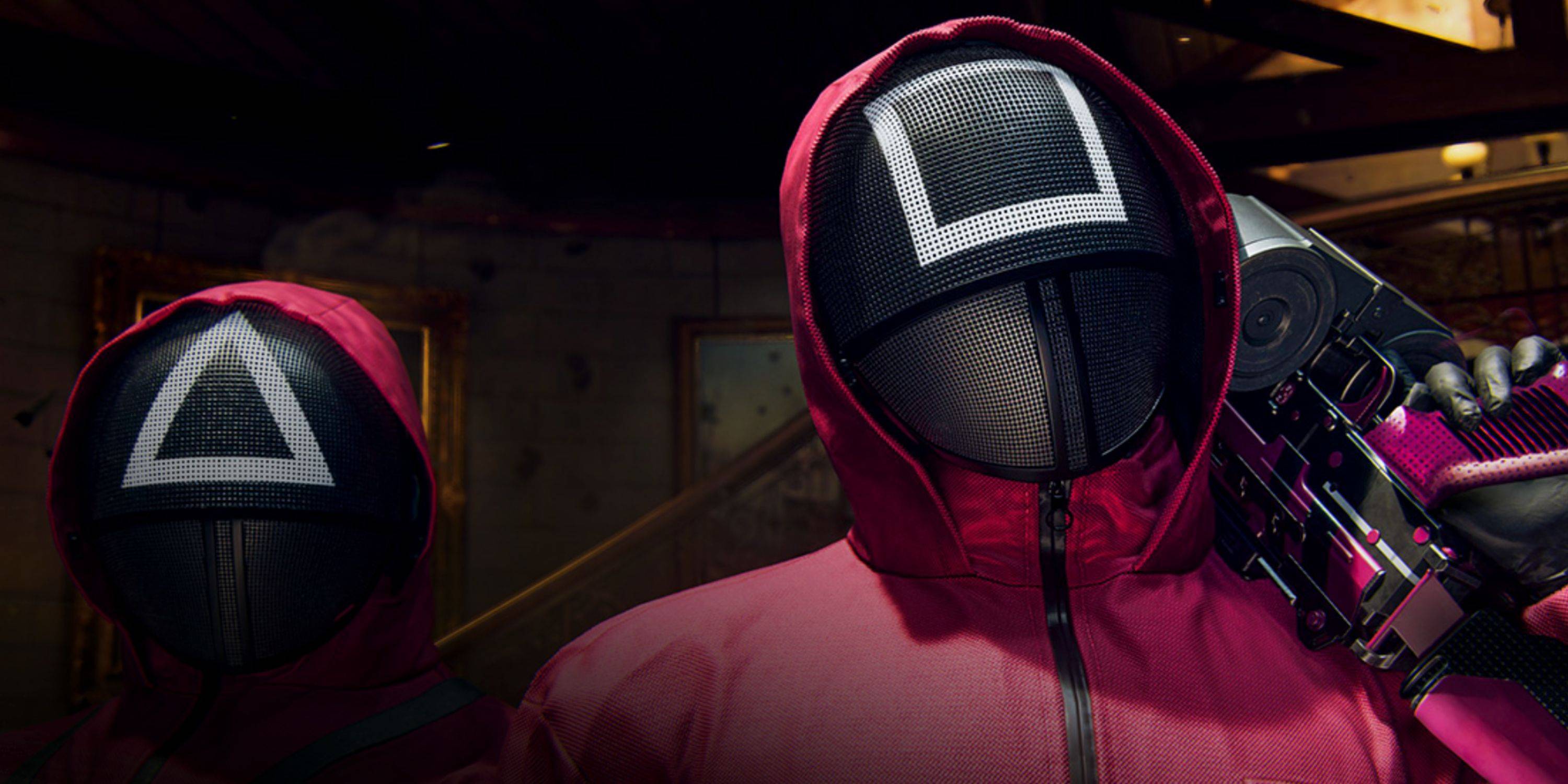
Conquer Call of Duty: Black Ops 6: Disable Killcams and Effects for a Smoother Experience
Call of Duty: Black Ops 6, a standout title in the franchise, offers intense multiplayer action. Its highly customizable settings allow players to tailor their experience. This guide focuses on disabling killcams and exaggerated kill effects, often found distracting by veteran players.
How to Disable Killcams
Killcams, a staple of Call of Duty, show the killer's perspective after your demise. While helpful for learning enemy positions, constantly skipping them can be tedious. Here's how to disable them:
- From the Black Ops 6 multiplayer menu, access the Settings using the Start/Options/Menu button.
- Navigate to the Interface settings.
- Locate the "Skip Killcam" option and toggle it off.
You'll no longer need to skip killcams. However, you can still view them by holding the Square/X button after death.
How to Disable Kill Effects
Black Ops 6's battle pass introduces numerous weapon skins with unique, sometimes over-the-top, kill animations. These flashy effects, ranging from laser beams to explosive confetti, might not appeal to all players. Here's how to tone them down:
- Access the Settings menu from the multiplayer menu using the Start/Options/Menu button.
- Scroll down and select Account & Network settings.
- Under the content filter settings, find "Dismemberment & Gore Effects" and toggle it off. This will remove the more dramatic kill animations.
By following these steps, you can customize your Black Ops 6 experience, eliminating distractions and enhancing your gameplay.
Quick Links
Latest News
more >-

-

-
- Star Wars Outlaws Coming to Nintendo Switch 2
- Dec 13,2025
-
-